
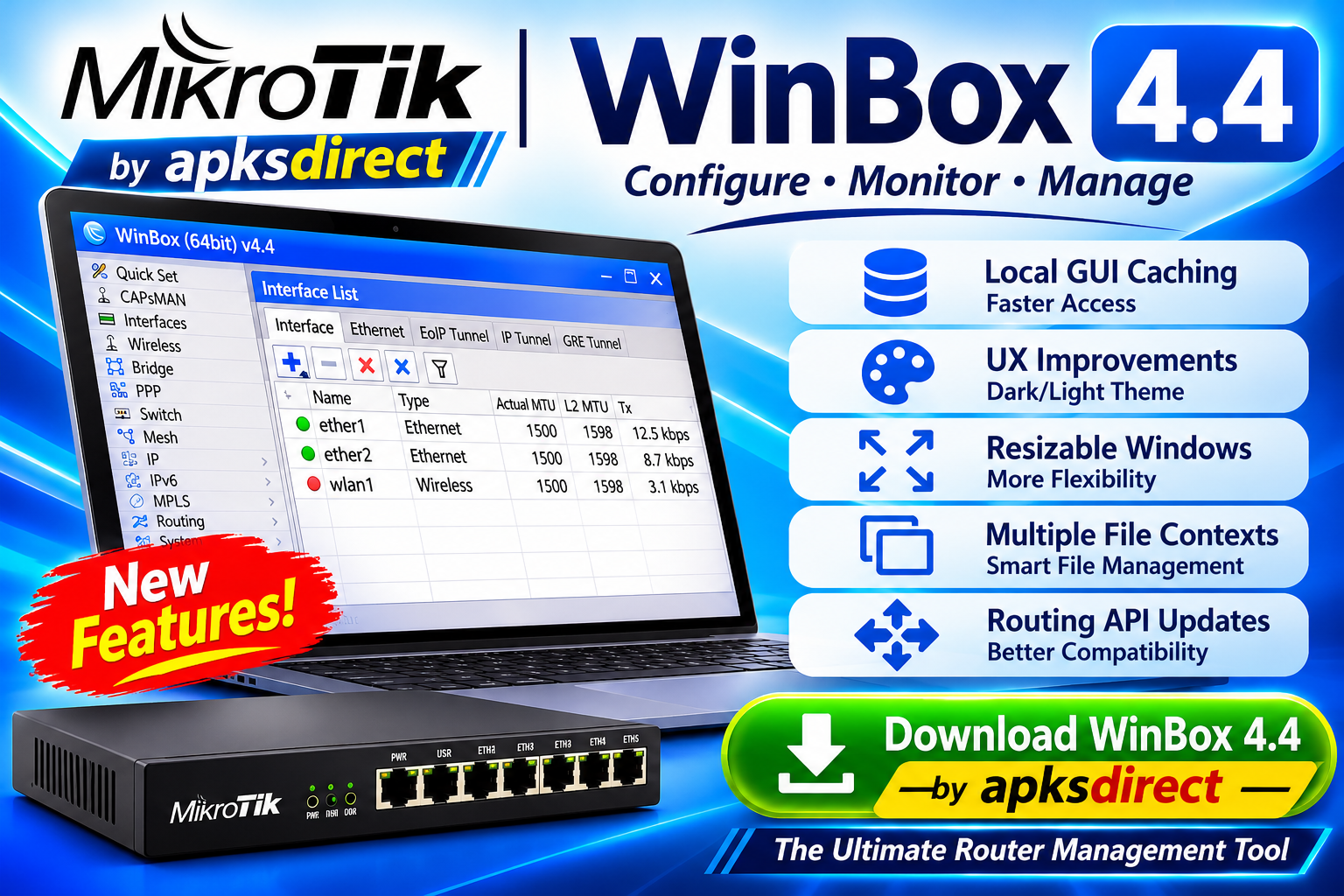
An in-depth overview of the key features introduced in MikroTik WinBox 4.4, covering improved local caching of RouterOS interface resources, enhanced user experience, flexible window resizing, better management of multiple file contexts, and important routing API updates.
WinBox Installation & Complete User Guide
Winbox is a small utility that allows the administration of MikroTik RouterOS using a fast and simple GUI. It is a native Win32 binary but can be run on Linux and macOS (OSX) using Wine.
All interface functions are as close as possible mirroring the console functions, which is why there are no sections in the manual. Some of the advanced and system-critical configurations are not possible from MikroTik WinBox, like MAC address change on an interface changelog.
It supports IPv6 connectivity. To connect to the routers IPv6 address, it must be placed in square braces the same as in web browsers when connecting to the IPv6 server. Winbox neighbor discovery is now capable of discovering IPv6-enabled routers. As you can see from the image below, there are two entries for each IPv6-enabled router, one entry is with IPv4 address and another one with IPv6 link-local address.
It has an MDI interface meaning that all menu configuration (child) widows are attached to the main (parent) window and are shown in the work area. By default, the app shows the most commonly used parameters. However sometimes it is needed to see other parameters, for example, “BGP AS Path” or other BGP attributes to monitor if routes are selected properly. It is possible to upload and download files to/from the router using win box drag & drop functionality. You can also download files by pressing the right mouse button on it and selecting “Download“.
It can be used as a tool to monitor the traffic of every interface, queue, or firewall rule in real time. The screenshot below shows ethernet traffic monitoring graphs.
Highlights
- Winbox.exe is signed with an Extended Validation certificate, issued by SIA Mikrotikls (MikroTik).
- WinBox uses ECSRP for key exchange and authentication (requires a new winbox version).
- Both sides verify that the other side knows the password (no man-in-the-middle attack is possible).
- Winbox in RoMON mode requires that the agent is the latest version to be able to connect to the latest version routers.
- Winbox uses AES128-CBC-SHA as an encryption algorithm (requires winbox version 3.14 or above).
Key Features
Device Configuration: It offers a comprehensive range of options to configure network devices, including IP addressing, firewall settings, routing protocols, quality of service (QoS), and more.
Monitoring and Analysis: The software provides real-time monitoring tools to track network performance, bandwidth usage, system resource utilization, and network traffic analysis.
Secure Connectivity: It supports secure connections over SSH and secure tunneling using IPsec, ensuring data privacy and integrity during remote management sessions.
Scripting and Automation: Network administrators can automate routine tasks by creating scripts within WinBox, streamlining network management operations, and increasing efficiency.
Traffic Control and Filtering: It includes powerful traffic shaping and filtering capabilities, allowing administrators to prioritize certain types of traffic, limit bandwidth usage, and implement firewall rules.
Installation and Setup
Installing the app is a straightforward process. Simply download the software from the official MikroTik website and run the installer. The installer guides you through the necessary steps, and once installed, itcan be launched with a single click. It is compatible with various versions of Windows, including Windows 7, 8, 10, or 11 (32/64bit).
How to Use
- Launch: After installation, launch the application by double-clicking the desktop shortcut or accessing it from the Start menu.
- Connect to a Device: Enter the IP address or hostname of the target MikroTik router or switch and provide valid credentials to establish a connection.
- Explore the Features: Once connected, the main window displays the available configuration options and monitoring tools. Explore the menu system to access the desired functionalities.
- Configure and Monitor: Use the intuitive GUI to configure settings, monitor network performance, analyze traffic, and manage connected devices.
- Save and Apply Changes: After making configuration changes, don’t forget to save and apply them to the devices. WinBox offers easy options to save and execute configurations.
FAQ
Can MikroTik WinBox be used on macOS or Linux?
No, the program is a Windows-only application. However, MikroTik routers and switches can be managed through the web-based interface on any operating system.
Is WinBox compatible with older MikroTik devices?
Yes, it supports a wide range of MikroTik hardware, including older models. Ensure that you have the latest version of WinBox for optimal compatibility.
Is WinBox a free software?
Yes, the program is available for FREE and can be downloaded from the official MikroTik website or FileHorse.
Can I manage multiple devices simultaneously with WinBox?
Yes, it allows simultaneous management of multiple MikroTik routers and switches, making it convenient for network administrators overseeing large-scale networks.
Does WinBox support automation and scripting?
Yes, it has a built-in scripting language that enables automation of repetitive tasks, making network management more efficient.
Winbox cannot connect to the router’s IP address?
Make sure that the Windows firewall is set to allow connections or disable the Windows firewall.
I get an error ‘(port 20561) timed out’ when connecting to router Mac address
Windows (7/8) does not allow Mac connection if file and print sharing is disabled.
change and no liks
What Is MikroTik WinBox?
MikroTik WinBox is an official desktop management utility developed by MikroTik for configuring and controlling routers and other devices powered by RouterOS. It provides a graphical user interface (GUI) that allows network administrators and users to manage router settings without relying entirely on command-line instructions.
With WinBox, users can configure network interfaces, manage IP addresses, monitor traffic, control firewall rules, and access various RouterOS features from one convenient application. Its simple layout and powerful management tools make it a popular choice for handling MikroTik networking equipment.
How to Install and Update RouterOS
Keeping RouterOS updated helps maintain device performance, compatibility, and security. If your MikroTik router is already running RouterOS, you can check for available updates through several built-in management interfaces.
Method 1: Update Through QuickSet
If your device supports QuickSet, follow these steps:
- Open the QuickSet interface.
- Find the Check For Updates option.
- Select it to check whether a newer RouterOS version is available.
- Follow the on-screen instructions to complete the update.
Method 2: Update Using WinBox or WebFig
You can also check for RouterOS updates through the WinBox application or WebFig interface.
- Connect to your MikroTik router.
- Open the System menu.
- Select Packages.
- Find the option to check for updates.
- Select the available update channel and version, if applicable.
- Follow the displayed instructions to download and install the update.
After installation, the router may need to restart to apply the changes.
Important: Always check that the selected RouterOS version is compatible with your device and consider creating a backup before upgrading. This helps protect your existing configuration and settings.
Local RouterOS GUI Caching
One of the most useful improvements in MikroTik WinBox 4.4 is the introduction of local caching for RouterOS graphical interface files. Previously, users often needed to download interface resources from the connected router during different sessions. The new caching system helps make this process more efficient.
Here are the main changes:
1. Local Cache Storage: Required RouterOS graphical interface files are downloaded and saved in the computer’s standard cache directory for future use.
2. 30-Day Cache Validity: Cached resources can remain available for up to 30 days. WinBox also checks the stored files periodically to help keep them synchronized with the router’s software version.
3. Clear Cache Option: A new Clear Cache button is available in Settings, giving users control over stored interface files.
4. Download Progress: Users can now view the progress of GUI resource downloads, making it easier to track the loading process.
User Experience, Themes & Window Management
WinBox 4.4 also brings several interface improvements aimed at making everyday network administration more comfortable. These updates focus on appearance, multitasking, and easier access to important settings.
- Automatic Theme Selection: Users can configure WinBox to follow their operating system’s appearance, with automatic, dark, and light theme options.
- Multiple Table Windows: Users can open multiple instances of certain table windows without relying on tabs. This is useful when monitoring different information panels simultaneously.
- Deletion Confirmation: Confirmation dialogs help prevent accidental removal of table entries. Users can disable these prompts where supported, while the Login Saved credentials table retains its protection.
- Terminal Scrollback Settings: The terminal now allows users to configure the scrollback buffer size, making it easier to review previous commands and lengthy output.
Improved File Management & Path Handling
Managing RouterOS files, software packages, scripts, and backups is also more convenient in this release. WinBox 4.4 improves how file locations are remembered and displayed.
- Separate File Paths: The application remembers the last-used directory independently for different file operations, including uploads, downloads, and address selection.
- Better NPK File Identification: Files with the
.npkextension now have visually distinct icons in the Files menu, making them easier to identify among regular folders and files. - Improved File Navigation: Separate path memory helps users move between file operations without repeatedly selecting the same directories.
Routing API & Compatibility Improvements
Another important area of development is the WinBox API subsystem. Version 4.4 includes updates designed to improve compatibility with additional field types and address issues involving older routing configurations.
These changes include:
- Updated API handling for newer field types intended to support future RouterOS compatibility.
- Corrections to advanced routing fields associated with RouterOS v6.
- Improved handling of routing-related information through the WinBox interface.
System Requirements
- Operating System: Windows 7 or later
- Processor: Intel Core i3 or equivalent
- RAM: 4 GB or higher
- Storage: 100 MB of free disk space
- Network Connectivity: Ethernet or Wi-Fi adapter for remote management
PROS
- Intuitive and user-friendly interface.
- Extensive feature set for configuring and monitoring MikroTik devices.
- Secure remote management options.
- Automation and scripting capabilities.
- Free of charge.
CONS
- Limited to the Windows platform.
- May not be suitable for users who prefer command-line interfaces.
Conclusion
MikroTik WinBox 4.4 focuses on practical improvements that make router management more efficient and user-friendly. Local GUI caching helps reduce repeated resource downloads, while updated themes, multiple table windows, and improved file management make everyday tasks more convenient.
The additional API and routing improvements also help maintain compatibility across different RouterOS environments. Overall, WinBox 4.4 is a worthwhile update for users looking for a smoother and more organized network management experience.